


A Windows 11 PC rarely slows down overnight. It happens bit by bit. Apps sneak into the startup list, the drive fills with downloads and cache files, background programs pile up, and one day the spinning cursor is everywhere.
The good news: most slowdowns have boring, fixable causes. You do not need paid software or risky tweaks. The fixes below start with the easiest and safest ones, so try them in order. For most people, the first five make a real difference.
The 12 fixes
1. Restart your PC properly
This sounds too simple, but it works more often than people expect. Windows 11 uses Fast Startup, which means shutting down is not a full restart. Memory stays loaded, stuck processes keep running, and small glitches pile up over weeks.
Click Start, then Power, then Restart. A true restart clears the memory completely. If your PC has not had a real restart in a month, this alone can make it feel snappier.
2. Disable startup apps you do not need
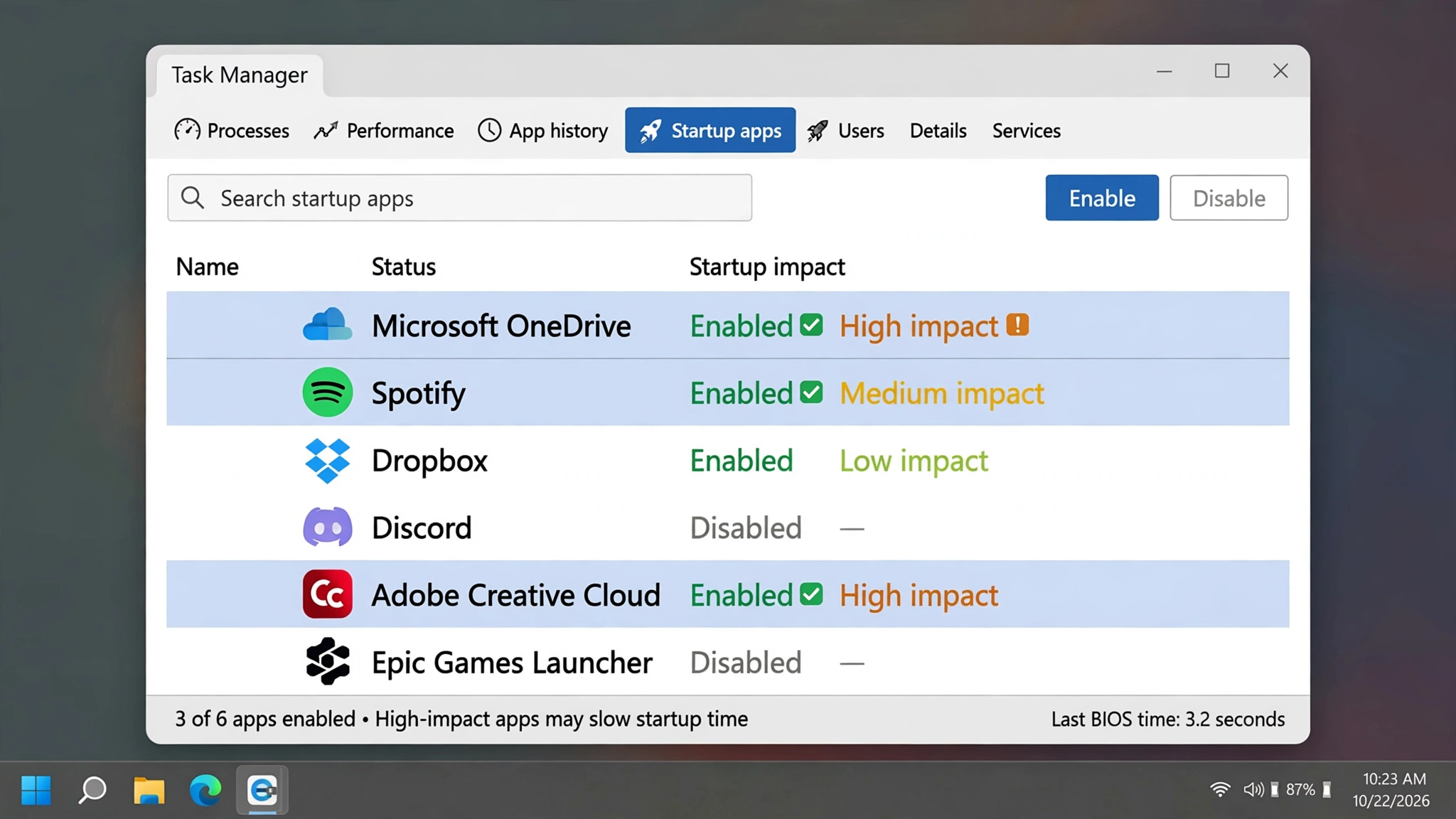
Every program that launches at sign-in adds seconds to your boot time and keeps eating memory in the background. Chat apps, game launchers, and updaters are common offenders.
Press Ctrl + Shift + Esc to open Task Manager, then click the Startup apps icon on the left side. Each program shows a startup impact of Low, Medium, or High. Right-click anything you do not need the moment you log in and choose Disable. Spotify, Adobe updaters, and similar tools can wait until you open them yourself. Leave your antivirus and driver-related entries alone.
3. Uninstall apps you no longer use
Old programs take disk space, run background services, and add their own startup entries. Go to Settings, then Apps, then Installed apps, and sort by size to spot the biggest space hogs first. Remove games you finished, trials you never opened, and duplicate tools. Unsure about an app? Search its name before removing it.
4. Free up storage and turn on Storage Sense
Windows struggles when the system drive is nearly full. Aim to keep at least 15 to 20 percent of your C: drive free.
Open Settings, then System, then Storage to see what is eating space. Click Temporary files and clear the safe categories like Windows Update Cleanup and the Recycle Bin (check its contents first). On the same Storage page, turn on Storage Sense. It cleans temporary files automatically when space runs low, so the problem does not quietly build up again.
5. Stop apps from running in the background
Many Store apps keep working after you close them, checking for updates and syncing data you may not care about. Go to Settings, then Apps, then Installed apps. Pick an app you rarely use, click the three dots next to it, choose Advanced options, and under Background apps permissions select Never. Skip your mail client if you rely on its notifications.
6. Turn down the visual effects
Windows 11 looks polished, with transparency and smooth animations. On an older machine, those effects have a cost.
Search for “Adjust the appearance and performance of Windows” in the Start menu and open it. On the Visual Effects tab, choose Adjust for best performance, or pick Custom and keep only what you actually notice, like smooth edges of screen fonts.
7. Switch your power mode to Best performance
Laptops often ship in a balanced or battery-saving mode, which quietly limits the processor. Go to Settings, then System, then Power and battery. Under Power mode, choose Best performance. Plugged in most of the day? This is free speed. On battery it drains a bit faster.
8. Run Windows Update and update your drivers
Slowdowns sometimes come from a buggy update or an outdated driver rather than the hardware itself. Open Settings, then Windows Update, and click Check for updates. Install everything offered, then click Advanced options and Optional updates to grab driver updates listed there. Graphics drivers deserve special attention: if you have an NVIDIA or AMD card, the maker’s own app usually has a newer version than Windows Update does.
9. Scan for malware with Windows Security
Malware and adware love running in the background, and a PC that suddenly gets slow for no clear reason is a classic symptom. Open Windows Security from the Start menu, go to Virus and threat protection, and click Scan options. Run a Full scan first. For a stubborn problem, run the Microsoft Defender Offline scan, which restarts your PC and scans before Windows fully loads.
10. Trim background extras you genuinely do not use
Some built-in features run in the background even if you never touch them. Be selective here, because switching off the wrong thing can break features you need. If you never record or stream games, open Settings, then Gaming, then Game Bar, and turn it off. You can also switch off background captures under Gaming, then Captures. Widgets are another candidate: if you never open the weather and news board, right-click the taskbar, open Taskbar settings, and toggle Widgets off.
That is the safe list. Leave Windows services alone in general. Disabling rows of services from random lists causes more problems than it fixes, and modern Windows handles them well.
11. Find the real bottleneck in Task Manager
If your PC is still slow, stop guessing and look at the numbers. Open Task Manager, click Performance, and leave it open while you use the PC normally. If the disk sits at 100 percent on an old hard drive, that is your bottleneck. If memory stays above 90 percent, apps are fighting for RAM. If one program you do not recognise maxes out the CPU, search its name. The Processes tab, sorted by CPU or Memory, names the culprit directly.
12. Consider the upgrades that actually matter, and reset only as a last resort
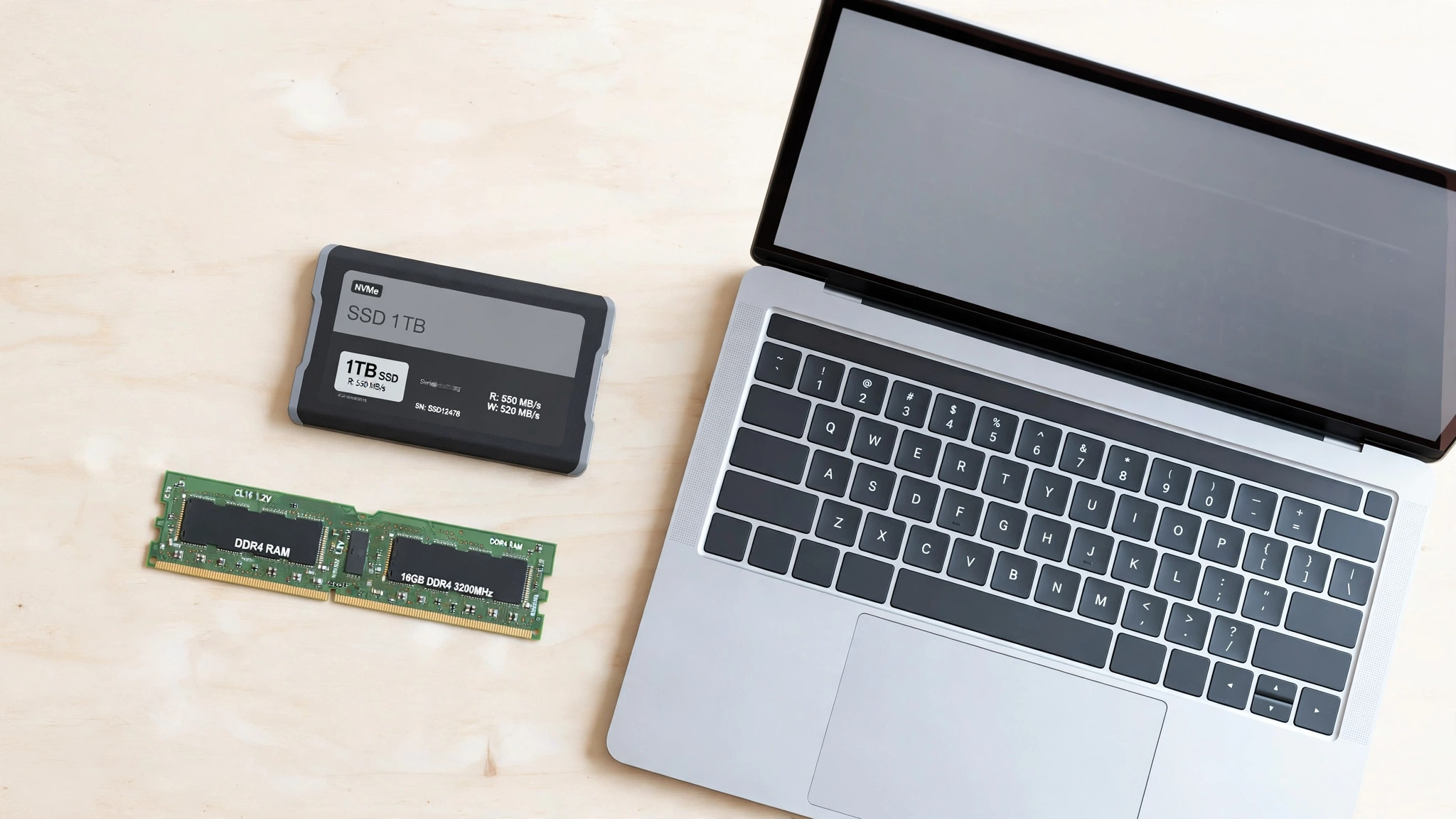
Software fixes can only go so far on old hardware. Two upgrades genuinely change how fast a PC feels. Replacing a spinning hard drive with an SSD is the single biggest upgrade you can make, cutting boot times from minutes to seconds. Adding RAM matters too: if your PC has 4 GB or 8 GB and you keep many tabs open, moving to 16 GB removes a lot of stutter. Curious whether your machine counts as modern hardware? Our guide on what an AI PC is explains the hardware side in plain terms.
If none of this helps, a reset is the last resort. Go to Settings, then System, then Recovery, and choose Reset PC. Pick Keep my files, and back up anything important first anyway. It reinstalls your apps, so treat it as the final step, not the first.
Microsoft also keeps its own checklist of tips to improve PC performance in Windows on the Support site, worth a look too.
What will not help, despite the claims
Two types of tools get recommended a lot and deliver almost nothing.
Registry cleaners promise hundreds of “errors” fixed and a faster PC. In practice, the registry does not need cleaning, the entries removed are harmless leftovers, and a bad cleanup can damage Windows enough to need a reinstall. Microsoft does not support registry cleaners, and neither do we.
RAM boosters and one-click “PC accelerators” are just as pointless. They force Windows to empty its memory cache, which actually slows things down, because Windows then reloads everything from the slower drive. Windows manages memory well on its own. If an app needs a monthly subscription to “keep your PC fast”, close the tab.
Frequently asked questions
Why is my Windows 11 so slow all of a sudden?
A sudden slowdown usually has a specific cause: a Windows update still installing in the background, a new program added to startup, malware, or a drive that just filled up. Open Task Manager and check which process uses the most CPU, memory, or disk. The answer is normally right there.
Does disabling startup apps really help?
Yes. Fewer startup apps means a faster sign-in and more free memory for the programs you actually open. Nothing breaks, because disabled apps still work normally when you launch them yourself.
How much RAM does Windows 11 need?
Microsoft lists 4 GB as the minimum, but that is a floor, not a comfortable target. 8 GB is fine for light use. 16 GB is the sweet spot for most people, especially with many tabs and video calls open at once.
Will an SSD speed up Windows 11?
Almost certainly, if you still use a traditional hard drive. An SSD cuts boot times, app launches, and file copying dramatically. It is the most noticeable upgrade you can give an older PC.
Is it safe to delete temp files?
Yes. Temporary files are meant to be disposable, and Windows will not let you delete anything the system still needs. Clear them via Settings, then System, then Storage, then Temporary files. Just double-check the Downloads box before ticking it, because that one removes files you may want to keep.
Final word
Work through the list from the top and stop when your PC feels right again. Most slowdowns come down to startup clutter, a full drive, or one greedy program. If you reach the hardware stage, spend on an SSD first and RAM second. That order gives the most speed for the least money.



[…] your machine has been sluggish in general while you have been fighting this, our Windows 11 speed-up guide covers the background causes that make everything, including small tools, […]